Set up your changelog
1
Create a page for your changelog
- Create a new page in your docs such as
changelog.mdxorupdates.mdx. - Add your changelog page to your navigation scheme in your
docs.json.
2
Add Update components to your changelog
Add an
Update for each changelog entry.Include relevant information like feature releases, bug fixes, or other announcements.Example changelog.mdx
Customize your changelog
Control how people navigate your changelog and stay up to date with your product information.Table of contents
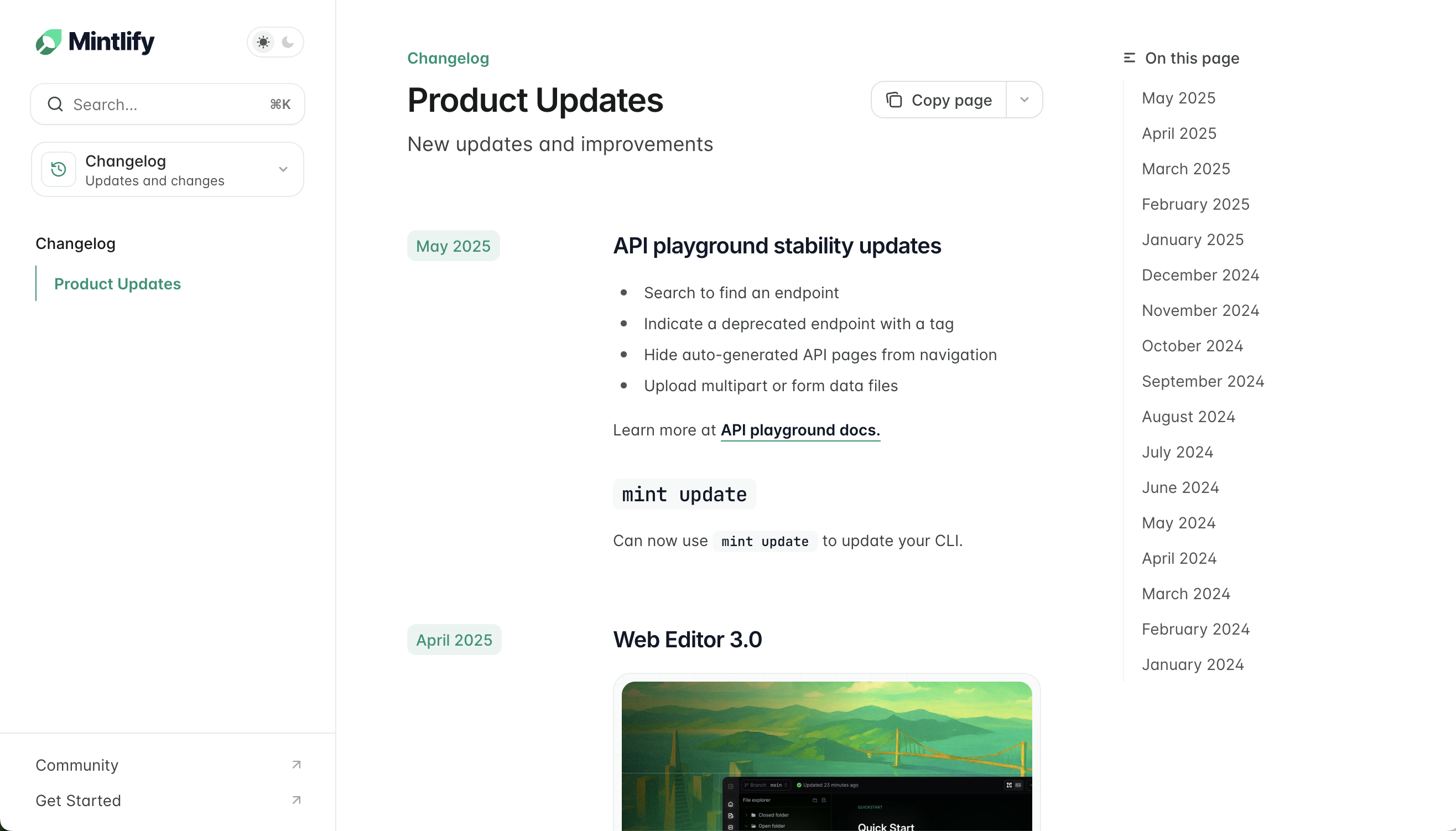
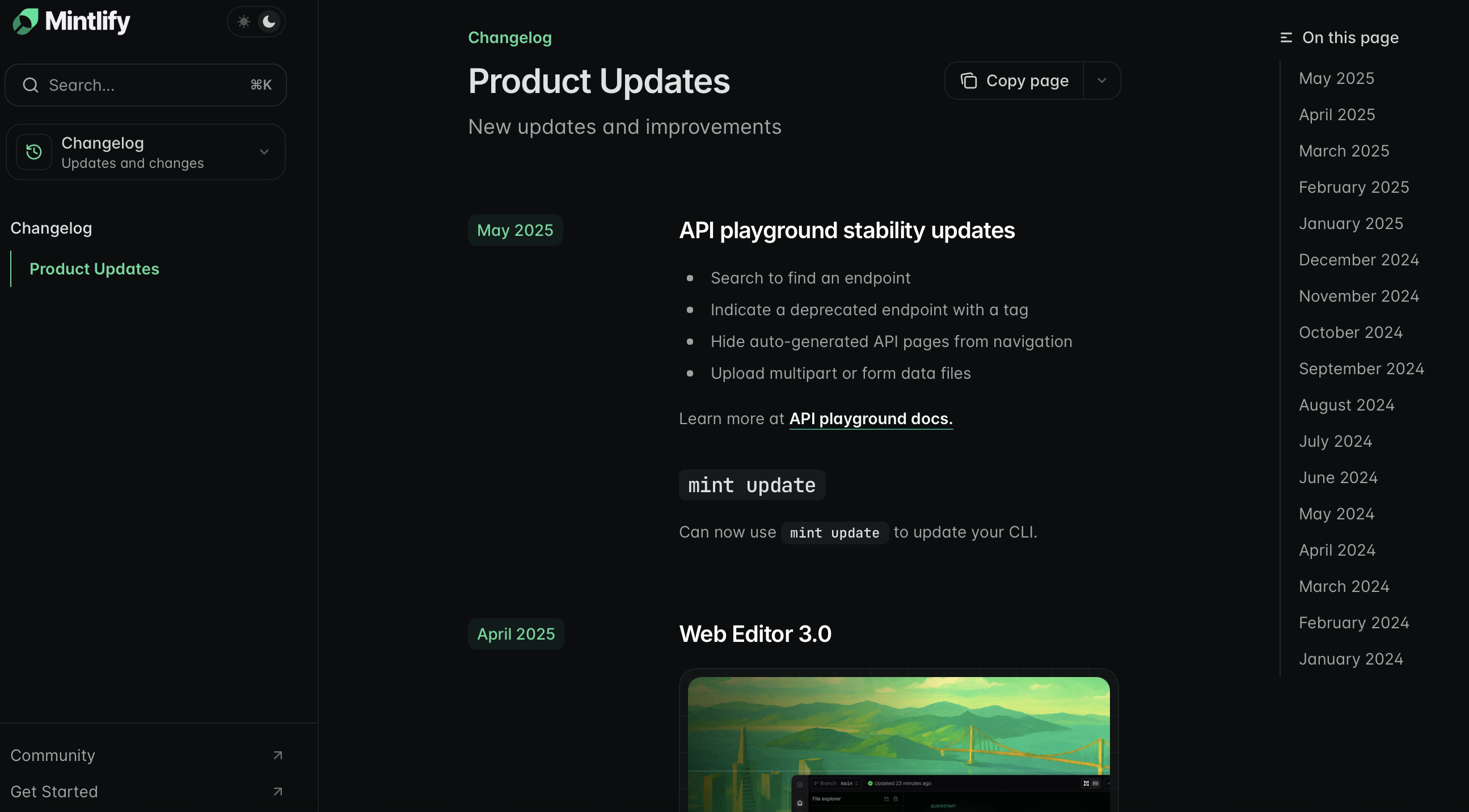
Eachlabel property for an Update automatically creates an entry in the right sidebar’s table of contents. This is the default navigation for your changelog.
Tag filters
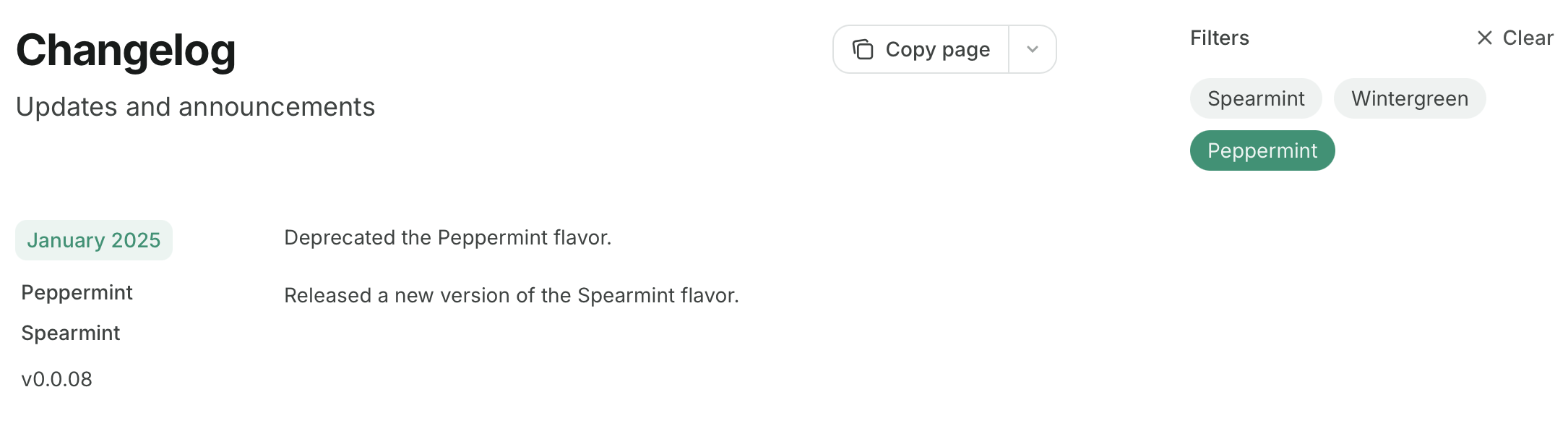
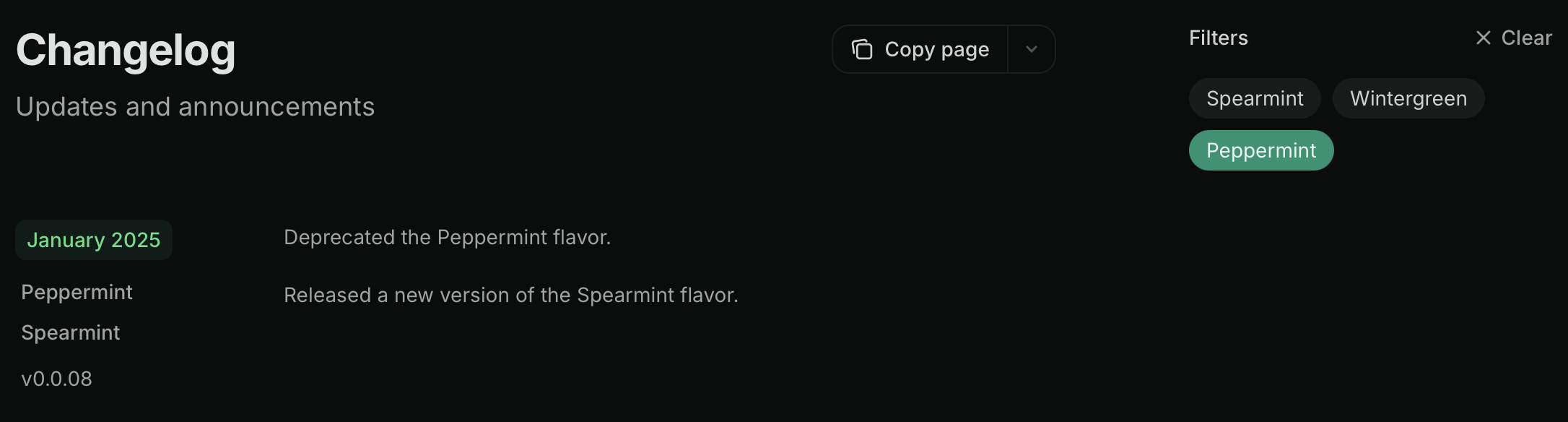
Addtags to your Update components to replace the table of contents with tag filters. Users can filter the changelog by selecting one or more tags.
When a user selects multiple tags, the changelog shows only updates that include every selected tag. The changelog hides updates without tags whenever a filter is active.
Tag filters example
Subscribable changelogs
RSS feeds are only available on public documentation.
Update components to create a subscribable RSS feed at your page URL with /rss.xml appended. For example, mintlify.com/docs/changelog/rss.xml.
The RSS feed publishes entries when you add new Update components and when you modify headings inside of existing Update components.
RSS feed entries contain pure Markdown only. They exclude components, code, and HTML elements. Use the rss property to provide alternative text descriptions for RSS subscribers when your updates contain excluded content.
Example RSS feed
- Slack
- Email via Zapier
- Discord bots like Readybot or RSS Feeds to Discord Bot
rss: true to the page frontmatter: