
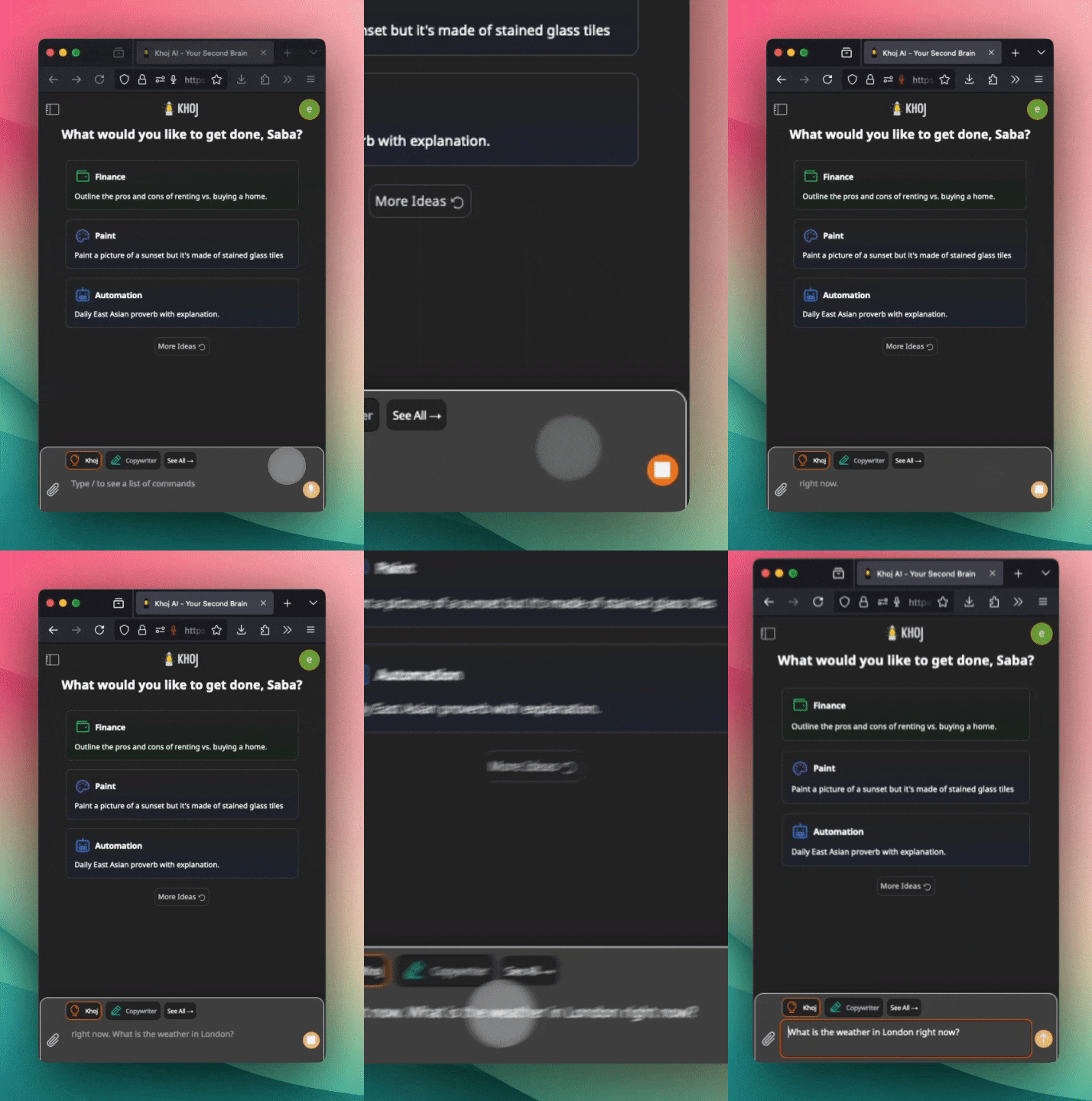
How Voice Chat Works
Using Voice Input
- Web
- Desktop App
- Obsidian
Open app.khoj.dev/chat
Voice Response
Automatic Voice Reply
When you send a voice message, Khoj automatically responds with voice:Manual Voice Playback
Listen to any message, even if typed:
Voice response is currently available on the web interface. Desktop and Obsidian support coming soon.
Voice Chat Tips
Speak Clearly
Speak Clearly
- Use a quiet environment when possible
- Speak at a normal pace - not too fast or slow
- Enunciate clearly, especially for technical terms
- Pause briefly between sentences
Structure Complex Queries
Structure Complex Queries
For multi-part questions, use structure:Good:This helps both transcription accuracy and response quality.
Review Before Sending
Review Before Sending
Always check the transcription:
- Fix any misheard words
- Add punctuation if needed
- Correct technical terms or names
Use Voice for Long-Form
Use Voice for Long-Form
Voice shines for:
- Lengthy queries or descriptions
- Brainstorming sessions
- When typing is inconvenient
- Dictating notes or ideas
Mix Input Methods
Mix Input Methods
Combine voice and text freely:
- Speak your question
- Type follow-up refinements
- Use voice for the next topic
Use Cases
- Hands-Free
- Accessibility
- Brainstorming
- Learning
While multitasking:
- Cooking while asking for recipe help
- Exercising while logging workouts
- Driving (parked) while reviewing schedule
- Cleaning while brainstorming ideas
Self-Hosting Configuration
Speech-to-Text (Voice Input)
- Default (Local)
- OpenAI Whisper API
Automatically configured when you initialize Khoj.
- Runs locally on your server
- No API keys needed
- Privacy-friendly
- Works offline
- Uses open-source models
Default configuration is sufficient for most users
Text-to-Speech (Voice Output)
- Default (Local)
- ElevenLabs
Included by default - uses local text-to-speech.Works immediately with no configuration.
Language Support
- Speech Recognition
- Voice Output
Khoj’s voice input supports many languages:
- English (all variants)
- Spanish
- French
- German
- Italian
- Portuguese
- Chinese (Mandarin)
- Japanese
- Korean
- Arabic
- Hindi
- Russian
- And many more…
OpenAI Whisper API has broader language support than local models
Voice Chat Best Practices
Good Microphone
Use a quality mic for better transcription accuracy
Quiet Environment
Reduce background noise when possible
Review Transcriptions
Always check before sending for accuracy
Use Headphones
Prevents feedback when listening to voice responses
Troubleshooting
Microphone not working
Microphone not working
Browser (Web):
- Check browser permissions for microphone access
- Look for blocked mic icon in address bar
- Try a different browser
- Ensure no other app is using the microphone
- Check system microphone permissions
- Verify mic is selected as input device
- Restart the application
- Test microphone in other apps
- Check physical mic connection
- Update audio drivers
Poor transcription accuracy
Poor transcription accuracy
Improve quality:
- Speak more slowly and clearly
- Use quieter environment
- Get closer to microphone
- Switch to OpenAI Whisper API (self-hosted)
- Use better microphone hardware
- Spell them out if needed
- Edit transcription before sending
- Add to custom vocabulary (if available)
No voice response
No voice response
Check:
- Voice output feature is web-only currently
- Click speaker icon manually to play
- Browser audio permissions granted
- Volume not muted
- ElevenLabs API key valid (if configured)
- Check server logs for TTS errors
- Verify ELEVEN_LABS_API_KEY environment variable
- Ensure sufficient API credits
Voice response cuts off
Voice response cuts off
- Check internet connection stability
- Try shorter messages
- Verify browser audio isn’t interrupted
- Check API rate limits (ElevenLabs)
Privacy Considerations
Voice data handling:Local processing (default):
- Voice stays on your server
- No data sent to third parties
- Maximum privacy
- Audio sent to API provider for processing
- Subject to provider’s privacy policies
- Typically not stored long-term
- Check provider terms for details
Keyboard Shortcuts
Speed up voice chat with hotkeys:| Action | Shortcut |
|---|---|
| Activate microphone | Click mic icon (no global hotkey yet) |
| Stop recording | Click again or auto-stop |
| Play/pause voice | Click speaker icon |
Combining Voice with Other Features
- Voice + Search
- Voice + Online Search
- Voice + Image Generation
- Voice + Code
Future Enhancements
Voice features coming soon:- Voice response on Desktop and Obsidian
- Push-to-talk hotkey
- Voice-only mode (continuous conversation)
- Voice activity detection (auto-start/stop)
- Custom wake word support
- Voice command shortcuts
Feature requests and feedback welcome on Discord!
Next Steps
Learn Chat Commands
Master slash commands and conversation features
Keyboard Shortcuts
Navigate Khoj efficiently without the mouse
Mobile Access
Use voice chat on your phone via web app