
Web Client
The Khoj web client is the easiest way to get started with your AI-powered second brain. Access it from any device with a web browser at app.khoj.dev.
Features
Chat
- Faster answers: Find answers quickly from your private notes or the public internet
- Assisted creativity: Smoothly weave across retrieving answers and generating content
- Iterative discovery: Iteratively explore and re-discover your notes
Search
- Natural language: Advanced natural language understanding using Transformer-based ML models
- Incremental search: Fast, search-as-you-type experience
- Cross-device: Access from any device with a web browser
Getting Started
Access Khoj Cloud
Navigate to app.khoj.dev in your web browser. No installation required!
Upload Documents
You can upload documents to Khoj directly from the web interface. This is particularly useful for mobile devices or when you want to quickly add a single document.- Drag and Drop
- File Picker
Simply drag and drop files directly into the chat window.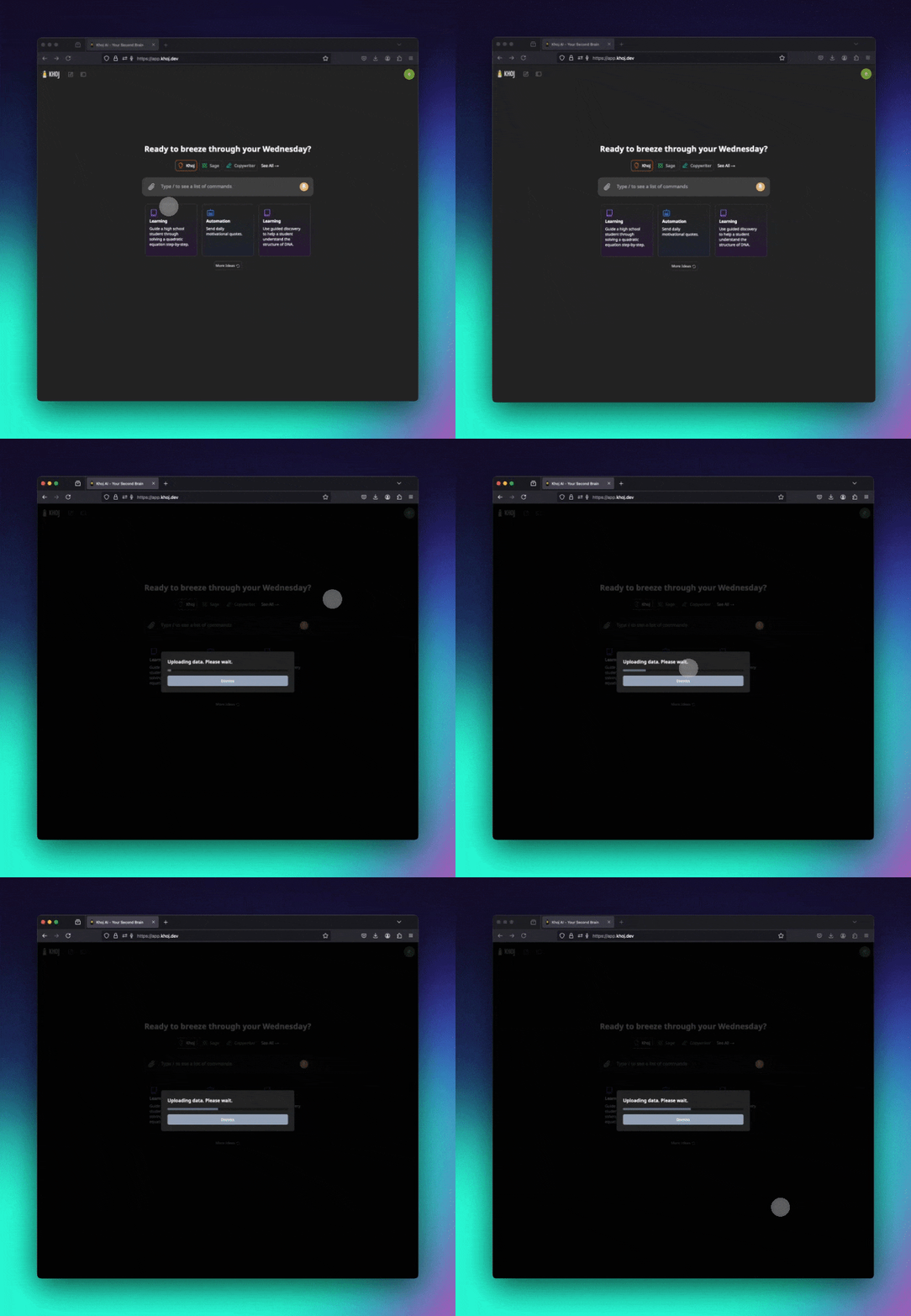
For syncing entire folders or bulk document management, consider using the Desktop client or Obsidian plugin.
Progressive Web App (PWA)
Install Khoj as a Progressive Web App for quick access and a native app-like experience.On Mobile
Open Khoj in Browser
Navigate to app.khoj.dev using Chrome or Edge on your phone and sign in.
| Step 1 | Step 2 | Step 3 |
|---|---|---|
On Desktop
Open in Chrome
Navigate to app.khoj.dev in Chrome or Edge.


Self-Hosting
If you’re running your own Khoj server, simply navigate to your server’s URL instead of app.khoj.dev.The web interface works the same whether you’re using Khoj Cloud or self-hosting. All features are available in both configurations.
Browser Compatibility
Chrome
Fully supported
Firefox
Fully supported
Safari
Fully supported
Edge
Fully supported
Opera
Fully supported
Mobile Browsers
Fully supported
Next Steps
Desktop Client
Sync local files and folders automatically
Chat Features
Learn about advanced chat capabilities
Search
Master natural language search
Mobile Apps
Explore mobile integrations