
Available Sideloading Methods
WSA Files App
Built-in method for WSA 2305+ - easiest option
WSA Sideloader
GUI tool supporting APK, XAPK, APKM, and APKS files
WSAPacman
Simple package manager for WSA
APK Installer
Paving Base APK Installer with modern UI
ADB Command Line
Advanced method using Android Debug Bridge
WSA Files App
This method only works with WSA version 2305 and above. For older versions, use ADB or one of the GUI installers.
Enable Folder Sharing
- Open Windows Subsystem for Android app
- Go to Advanced Settings
- Enable Share user folders under Experimental Features
- Click Change folder to select which Windows folder to share
Browse Windows Files
- Click on Subsystem for Android
- Select Windows to browse your Windows files
- Navigate to the location of your APK file
Installing Bundle Files
To install bundle files like.apkm or .xapk, install SAI (Split APKs Installer) first, then use it to install bundle files and regular APKs.
WSA Sideloader
WSA Sideloader is a powerful GUI tool that supports APK, XAPK, APKM, and APKS file formats.Installation
Download WSA Sideloader from:Microsoft Store
Install via winget or Microsoft Store
GitHub Releases
Download the latest installer
Setup and Usage
First Launch
After installation, launch WSA Sideloader. If you see a message that WSA is not installed, verify your WSA installation.
Enable Developer Mode
- Open WSA Settings from Start Menu or type
wsa-settings://in your browser - Select Developer tab
- Enable Developer mode
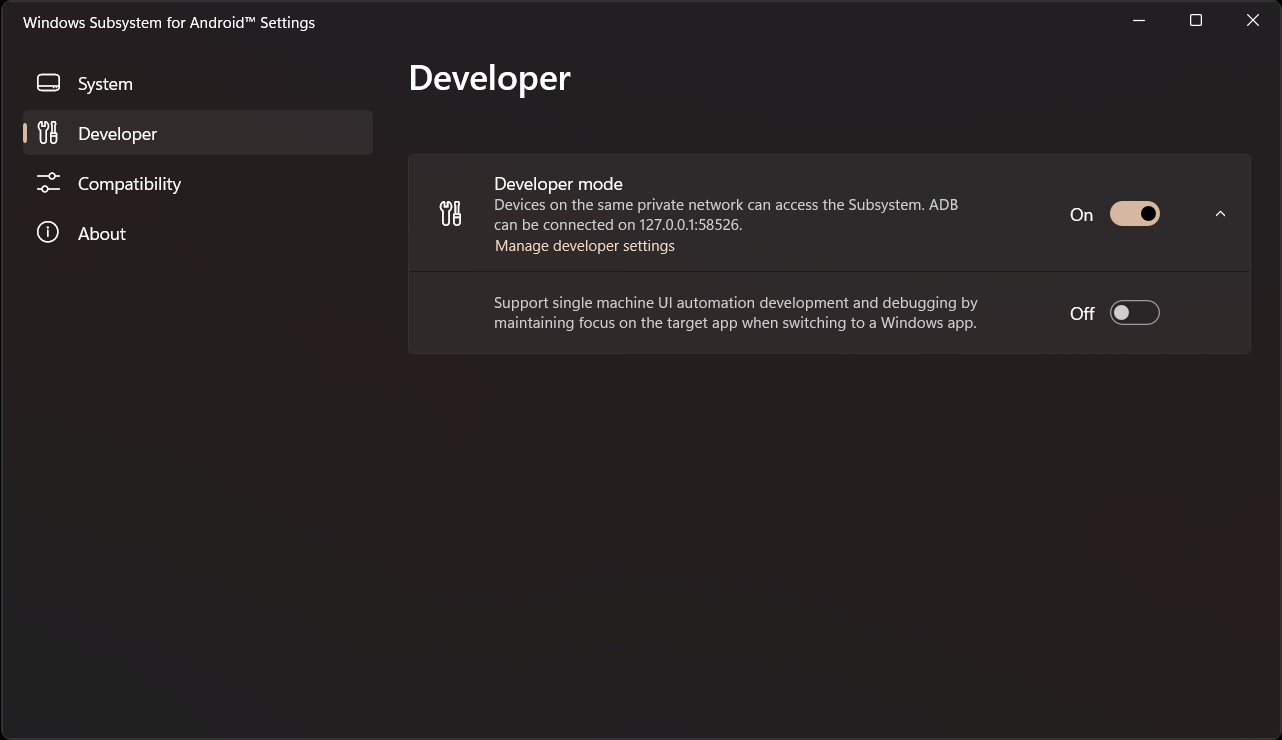
Select APK File
Click the Browse button to select your APK file, or double-click an APK in File Explorer to automatically open it with WSA Sideloader.
Allow ADB Debugging
On first installation, you’ll be prompted to allow ADB debugging. Check Always allow to skip this step in the future.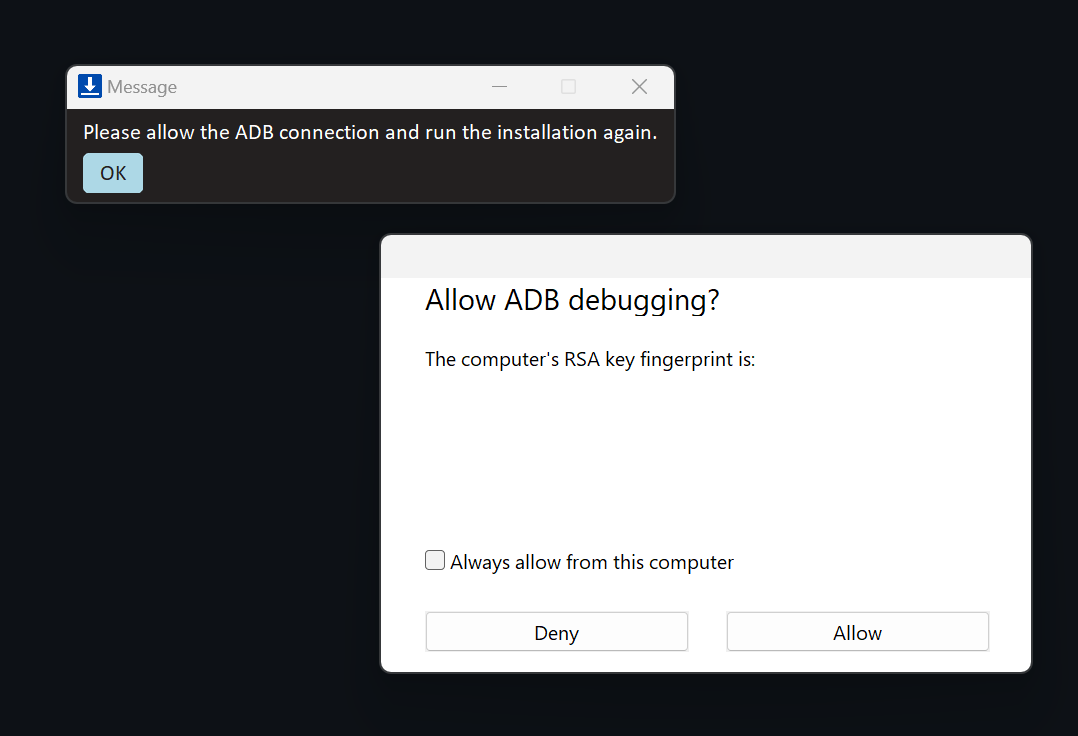
If WSA is off, WSA Sideloader will start it automatically. After 30 seconds, installation will continue.
Finding Installed Apps
Access your installed WSA apps from:- Windows Start Menu
- Installed apps button in WSA Sideloader
Troubleshooting WSA Sideloader
If you encounter connection errors:- Verify ADB authorization is allowed
- Confirm Developer Mode is enabled
- Try disabling and re-enabling USB debugging under Manage developer settings
- If you see “target machine actively refused it”, check your firewall settings
WSAPacman
A lightweight package manager for WSA.Install WSAPacman
Download and install WSA Pacman from GitHub.
APK Installer
The Paving Base APK Installer provides a modern interface for installing APK files. Visit the GitHub repository for installation instructions and documentation.Which Method Should I Use?
I want the simplest method
I want the simplest method
Use the WSA Files App if you have WSA 2305 or newer. It’s built-in and requires no additional software.
I need to install XAPK or APKM files
I need to install XAPK or APKM files
Use WSA Sideloader - it supports all bundle formats and provides a clean GUI experience.
I prefer command-line tools
I prefer command-line tools
Use ADB sideloading for maximum control and automation capabilities. See the ADB Sideloading Guide.
I want a package manager experience
I want a package manager experience
Try WSAPacman for a lightweight package management interface.
Recommended Apps to Install
After setting up your preferred sideloading method, consider installing:- Aurora Store: Download apps from Google Play without a Google account
- F-Droid: Open-source app repository
- FX File Explorer: Full-featured file manager
- Bromite: Privacy-focused Chromium browser
- microG: Open-source Google services replacement (for builds without Google services)
Next: ADB Sideloading
Learn advanced APK installation using Android Debug Bridge