

NetScan
NetScan is a portable tool for network scanning using Nmap on Windows, with an alternative GUI frontend based on Zenity. It deploys Nmap with all its dependencies silently and unattended, and allows executing different scanning levels while generating HTML reports.Features
Portable
No installation required - runs directly from extraction
Silent Deployment
Automatically installs Nmap and dependencies
HTML Reports
Generates detailed scan reports in HTML format
Windows Version
Download
| File | OS | Size |
|---|---|---|
| netscan.exe (.zip) | Windows 10/11 x64 | 78.2 MB |
Package Contents
- Nmap - Network scanning engine
- Npcap - Packet capture library
- libxslt (xsltproc) - XSLT processor for report generation
- Microsoft Visual C++ Runtimes - Required dependencies
Installation and Usage
Prepare System
- Disable Antivirus, Antimalware, and SmartScreen temporarily
- Close all applications
- Verify system date and time are correct
- Connect to your data network
Extract and Run
- Unzip
netscan.exe (.zip)to your desktop - Double-click the executable
- Accept privileged execution when prompted
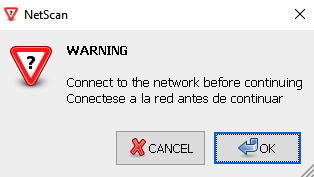
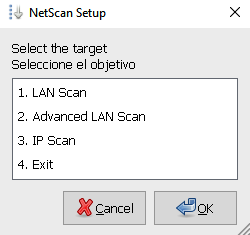
Npcap Installation
Manually complete the Npcap installation when prompted.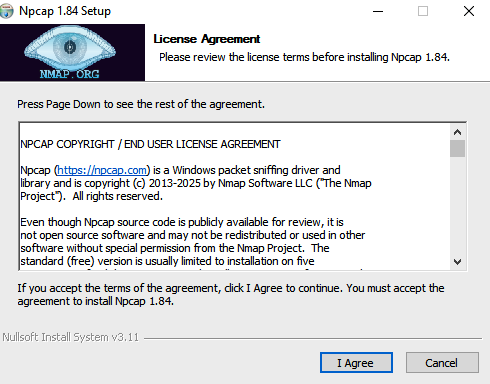
Npcap free version is included, which supports up to 5 machines. The OEM version with silent installation is not available in the free tier.
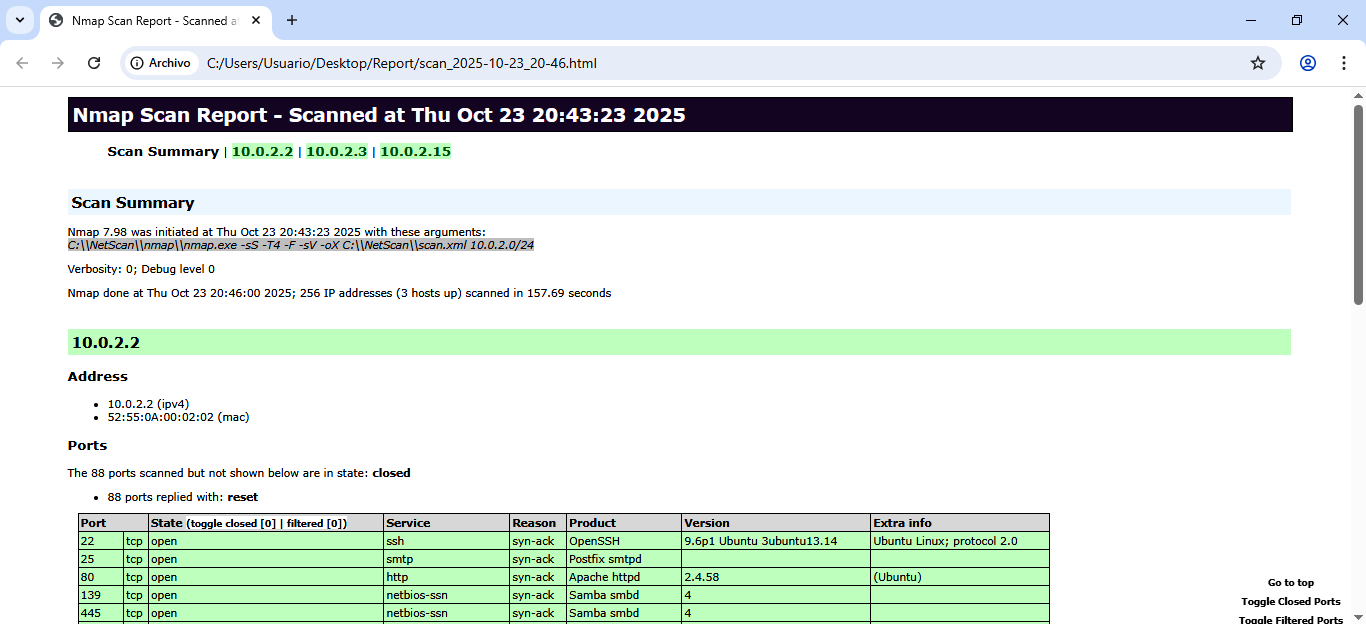
Scanning Modes
- LAN Scan
- Advanced LAN Scan
- IP Scan
Quick Network Discovery
- Fast network scan
- Service version detection
- Ideal for quick inventory
Scan Messages
Progress Messages
Progress Messages
| Message | Description |
|---|---|
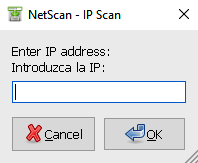 | Enter specific IPv4 (ranges not accepted) |
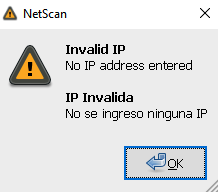 | Invalid IPv4 address entered |
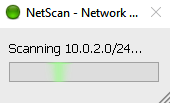 | Scanning in progress |
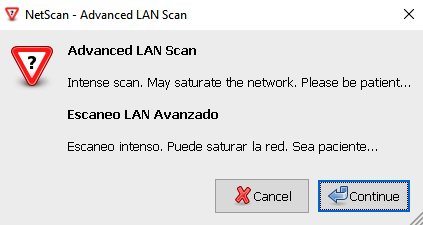 | Intense scan running |
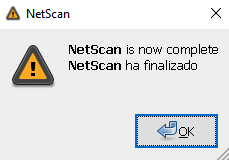 | Scan completed successfully |
Error Messages
Error Messages
| Message | Description |
|---|---|
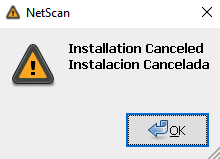 | Installation canceled or error occurred |
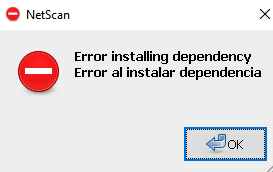 | Dependency installation failed |
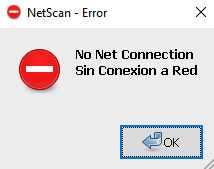 | No internet connectivity detected |
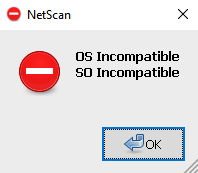 | Incompatible operating system |
Installation Messages
Installation Messages
| Message | Description |
|---|---|
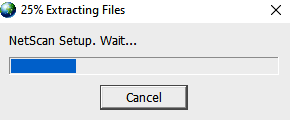 | Extracting NetScan content |
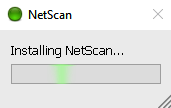 | Installing MS Visual C++ Runtimes |
Linux Version
NetScan can run on Linux with the same three scan modes. Reports are saved to/home/$USER/Report with timestamps.
Quick Start
Scan Options
- LAN Scan - Fast network discovery
- Advanced LAN Scan - Deep network analysis
- IP Scan - Comprehensive single-host audit
Output Reports
Reports are saved with timestamps for easy tracking: Windows:Desktop\Report\Linux:
/home/$USER/Report/
Filename format:
About Npcap Licensing
NetScan includes Npcap’s free version, which:
- Allows use on up to 5 machines
- Does not support silent installation (
/Soption) - Requires manual installation during setup
Telemetry
NetScan sends anonymous installation completion data for statistical purposes only. No personal data is collected. Example telemetry:System Requirements
Windows
- OS: Windows 10/11 x64
- Privileges: Administrator rights required
- Network: Active network connection
Linux
- OS: Ubuntu/Debian-based distributions
- Privileges: sudo access required
- Dependencies: Nmap (auto-installed)
Additional Resources
Nmap Documentation
Official Nmap reference and guides
Npcap Guide
Npcap installation and usage