
Transform Your VS Code Experience
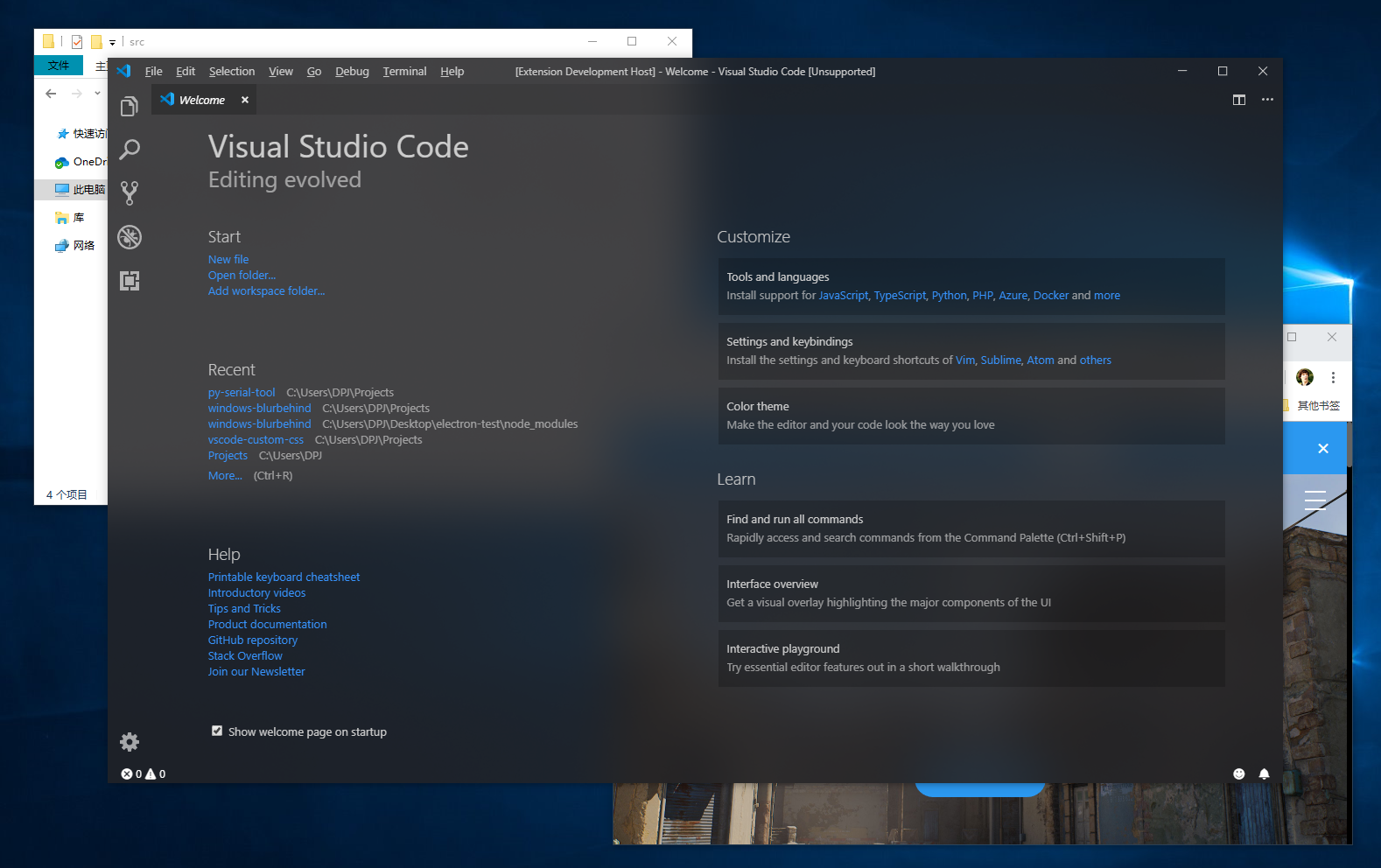
Enable beautiful Acrylic and Glass transparency effects for Visual Studio Code. Make your editor truly yours with 14 built-in themes and extensive customization options.
Quick Start
Get Vibrancy running in your VS Code in minutes
Install the Extension
- Open VS Code
- Press
Ctrl+Shift+X(Windows/Linux) orCmd+Shift+X(macOS) - Search for “Vibrancy Continued”
- Click Install
Enable Vibrancy
- Press
F1to open the Command Palette - Type “Reload Vibrancy” and select Reload Vibrancy
- Restart VS Code when prompted
Choose Your Theme
- Open Settings (
Ctrl+,orCmd+,) - Search for “vibrancy theme”
- Choose from themes like Default Dark, Tokyo Night Storm, Catppuccin Mocha, and more
Platform-Specific Setup (Windows Only)
- Update your VS Code shortcut to include
--disable-gpu-compositing: - Go to VS Code settings and enable Disable frameless window (
vscode_vibrancy.disableFramelessWindow) - Press
F1and run Reload Vibrancy
Key Features
Everything you need to customize your VS Code appearance
Multiple Vibrancy Types
14 Built-in Themes
Custom CSS Support
Auto Theme Switching
Cross-Platform
Native Performance
Explore by Topic
Find exactly what you need
Windows Setup Guide
Complete setup instructions for Windows 10 and 11, including GPU compositing fixes and frameless window configuration
macOS Setup Guide
Setup instructions for macOS including Intel and Apple Silicon, with App Translocation and permissions fixes
Configuration Reference
Complete reference for all Vibrancy settings including opacity, refresh intervals, and advanced options
Troubleshooting
Solutions for common issues including permission errors, window resizing problems, and installation failures
Supported Platforms
Vibrancy Continued works on all major platforms and editors
Windows
- Windows 10 (x64 & ARM64)
- Windows 11 (x64 & ARM64)
- Acrylic blur support
macOS
- Intel & Apple Silicon
- 10+ vibrancy types
- Native glass effects
Supported Editors
Ready to Transform Your Editor?
Join thousands of developers who have enhanced their VS Code with beautiful transparency effects
Get Started Now